
In Settings, you can select the repositories of the Logpoint Search Head and Distributed Logpoints for UEBA analysis. You can also enable the history service to forward 30 days of historical data to UEBA. If you do not enable the history service, Logpoint forwards input data from the date you configure the repos.
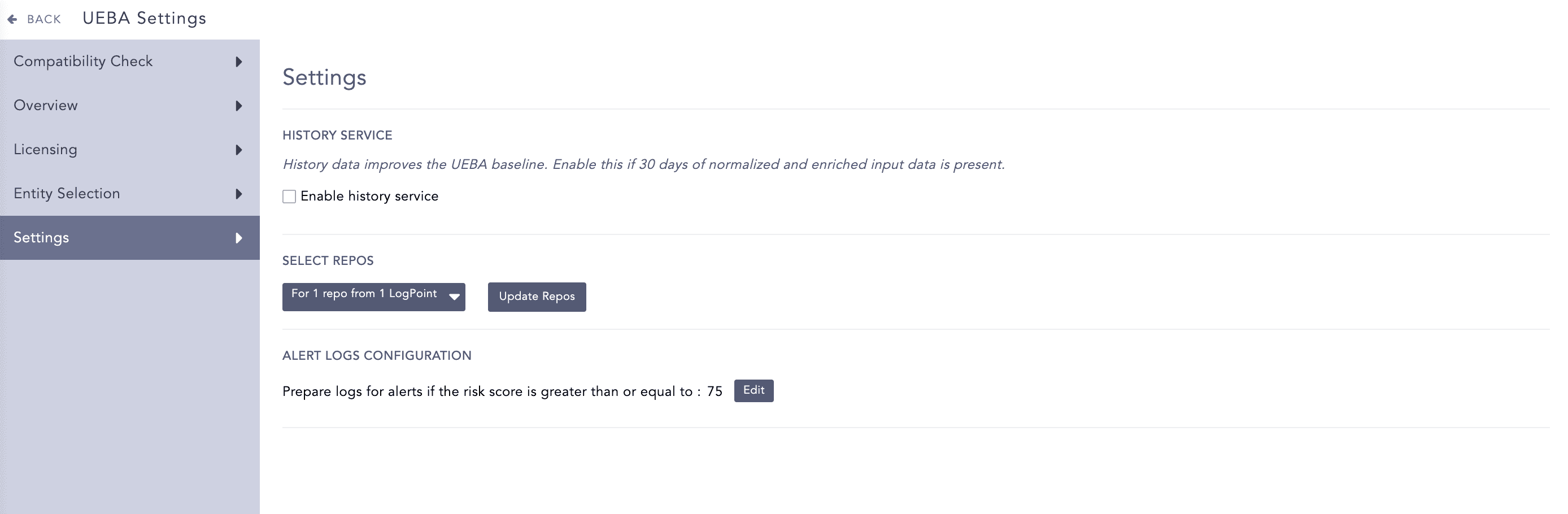
Settings
You can select multiple repos from the drop-down list in Select Repos. The repos in the Repo Selector are grouped either by Distributed Logpoints (DLP) or by Repo.
Go to Settings >> Configuration >> UEBA Board.
Select the Settings tab.
In Select Repos, click Change from the dropdown. From Repo Selector, choose to change how to group the repos.
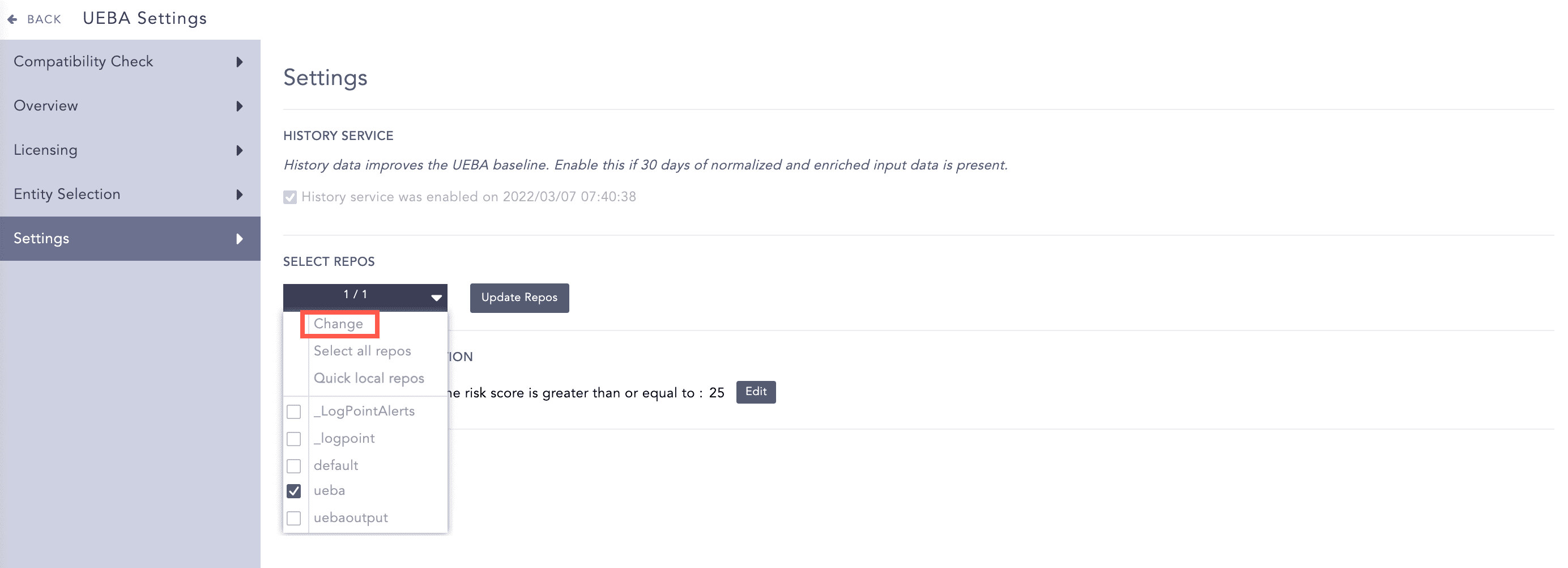
Selecting Repos
Click Fetch Remote to fetch the repos of all the connected DLPs.
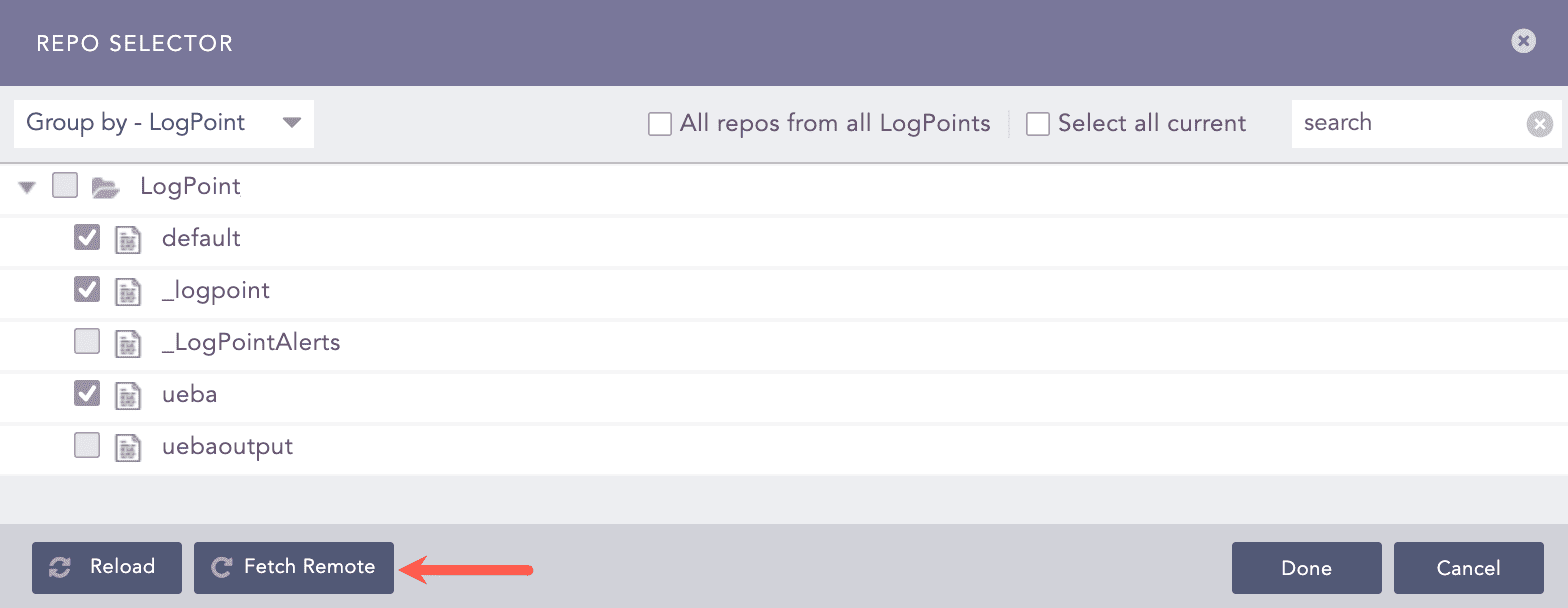
Fetching Repos
Click Reload.
Select All repos from all Logpoints to select all the repos from all the connected Logpoints. If you select All repos from all Logpoints and add a new DLP in the Search Head, all the existing repos, as well as the newly added repos of the new DLP machine are also selected in the Search Head.
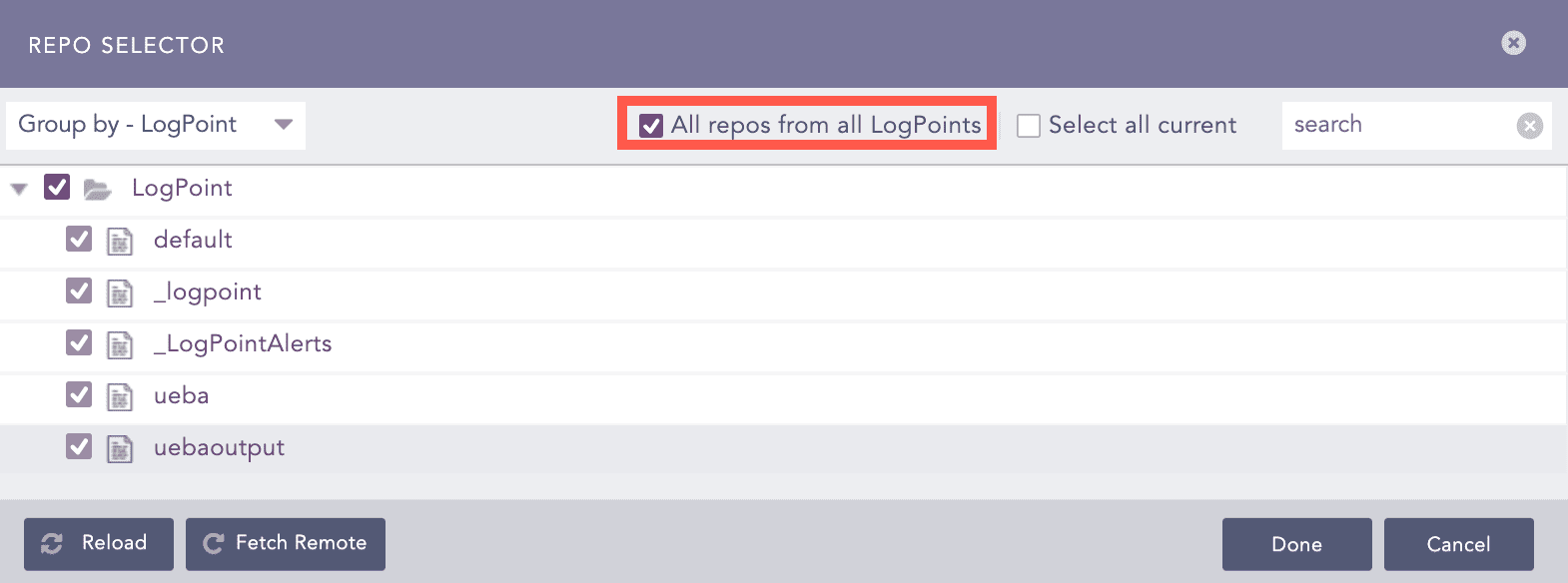
Selecting All Repos from all Logpoints
Use the search field at the top right to find the relevant repos.
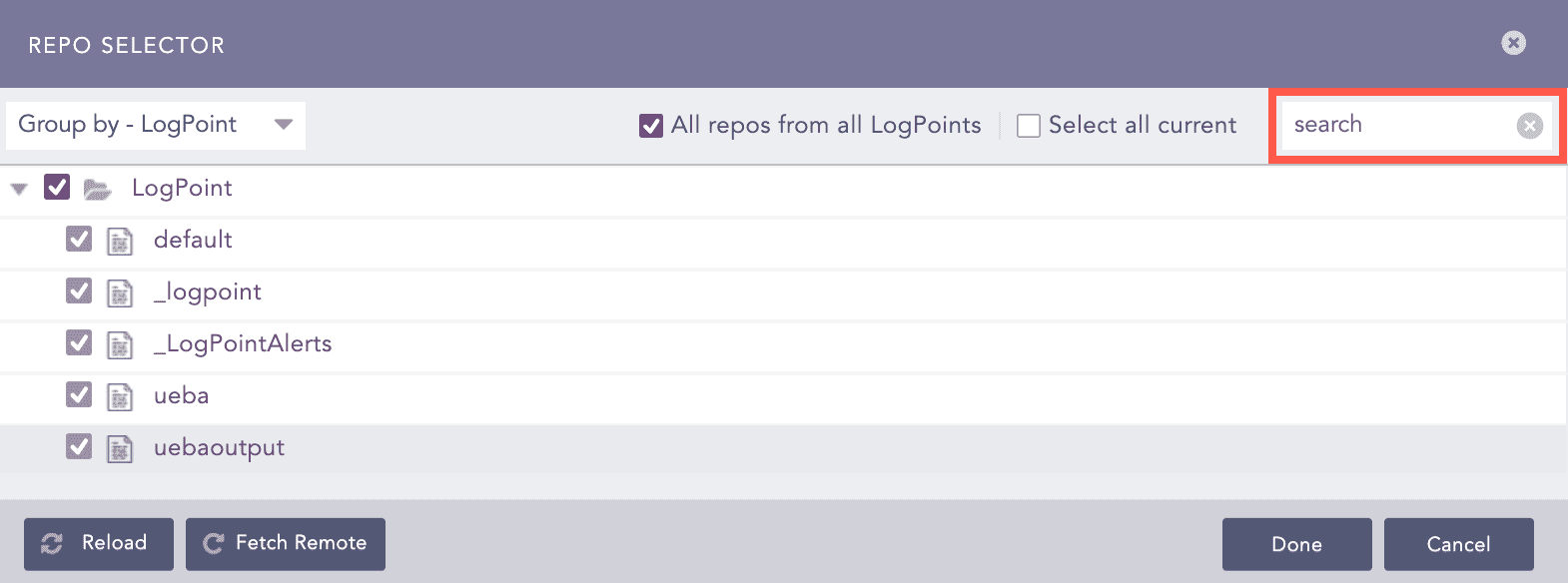
Searching for Repos
Click Done.
Select Enable history service if you have 30 days of enriched and normalized input data. Enable the history service for better baseline and result. You can enable the history service only once.
Enabling the History Service
Click Update Repos. Logpoint performs a quick configuration check.
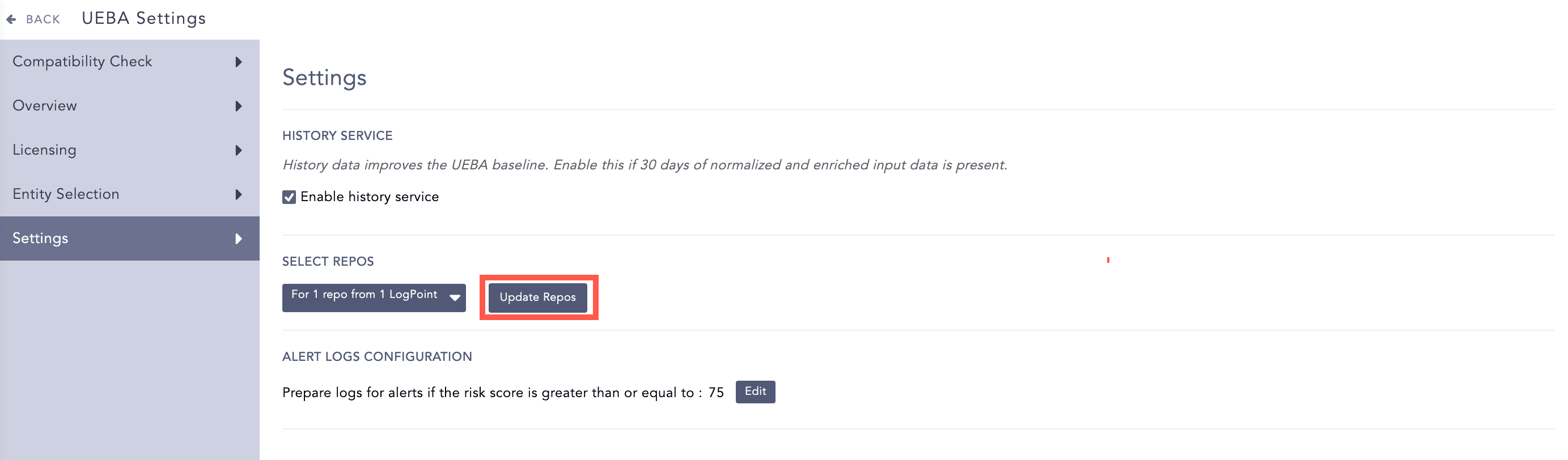
Updating Repos
UEBA anomalies with a risk score of 75 or greater are used in Alert Rules, by default. If you need to change the risk score:
Go to Settings >> Configuration >> UEBA Board.
Select the Settings.
In Alert Logs Configuration, click Edit.
Move the slider left or right to decrease or increase the risk score number.
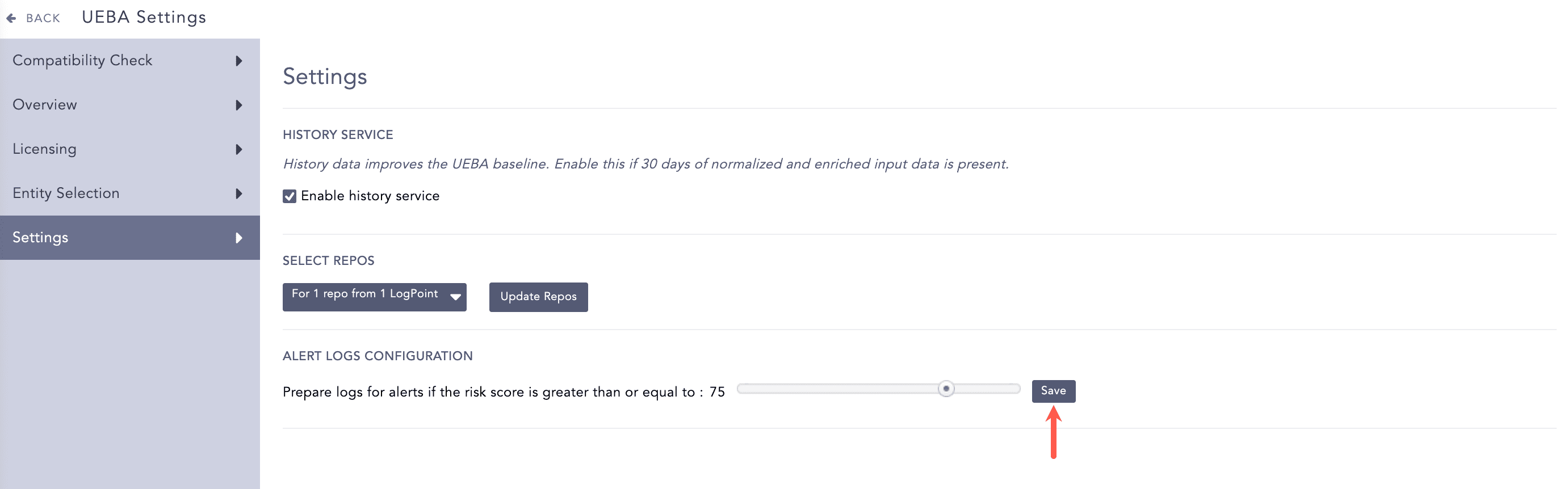
Changing the Risk Score
Click Save.